> ## Documentation Index
> Fetch the complete documentation index at: https://docs.dualentry.com/llms.txt
> Use this file to discover all available pages before exploring further.
# Claude Connector Directory: Connect DualEntry
> Connect Claude to your DualEntry ledger from Anthropic's connector directory, including the Owner approval step on Team and Enterprise plans.
DualEntry is in Anthropic's connector directory. Search for it, sign in, and Claude is connected to your ledger. No URLs to paste, no config files to edit.
This is the recommended path for anyone using Claude on the web, desktop, or mobile. If you are connecting Cursor, VS Code, Codex, or another client, use the configuration blocks in [Quickstart: DualEntry MCP Server](../../../developers/guides/mcp-quickstart) instead.
| Property | Value |
| ------------------------------ | --------------------------------------------------------- |
| Directory name | DualEntry |
| Server URL (manual setup only) | `https://api.dualentry.com/mcp/` |
| Authentication | OAuth 2.1 browser sign-in with your DualEntry credentials |
## Before you start
Two accounts have to be in place before the connection works: a Claude plan that allows connectors, and a DualEntry login with the access you expect Claude to have.
Connectors require a Claude Pro, Max, Team, or Enterprise plan. Free plans cannot add them from the directory or anywhere else.
You also need your normal DualEntry credentials. There is no API key to create and nothing to request from DualEntry: you sign in through the same browser flow you use for the dashboard.
Your MCP access mirrors your DualEntry role, company access, and subscriptions. If you cannot see a record type in the dashboard, Claude cannot see it either, and a tool that needs a permission you do not hold returns a `Missing permission:` message rather than the data.
On a Claude Team or Enterprise plan, an Owner or Primary Owner has to add DualEntry for the organization before it appears for members, and each member then authenticates individually. Start with [Get the connector approved on a Team or Enterprise plan](#get-the-connector-approved-on-a-team-or-enterprise-plan) if that is your situation, because the directory search returns nothing useful until that step is done. Anthropic documents the organization side in [Authorize MCP connectors for your entire organization](https://support.claude.com/en/articles/15537633-authorize-mcp-connectors-for-your-entire-organization).
## Connect from the connector directory
Adding DualEntry from the directory takes about a minute and ends with a browser sign-in. These steps are the same on Claude for web, desktop, and mobile.
1. Open Claude and go to **Customize > Connectors**. The older **Settings > Connectors** entry point redirects here.
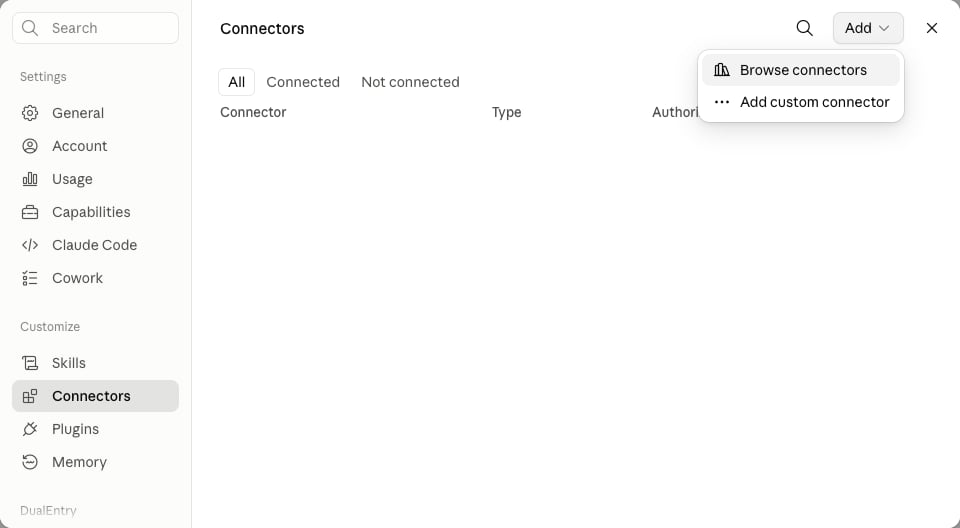
2. Choose **Add**, then **Browse connectors**.
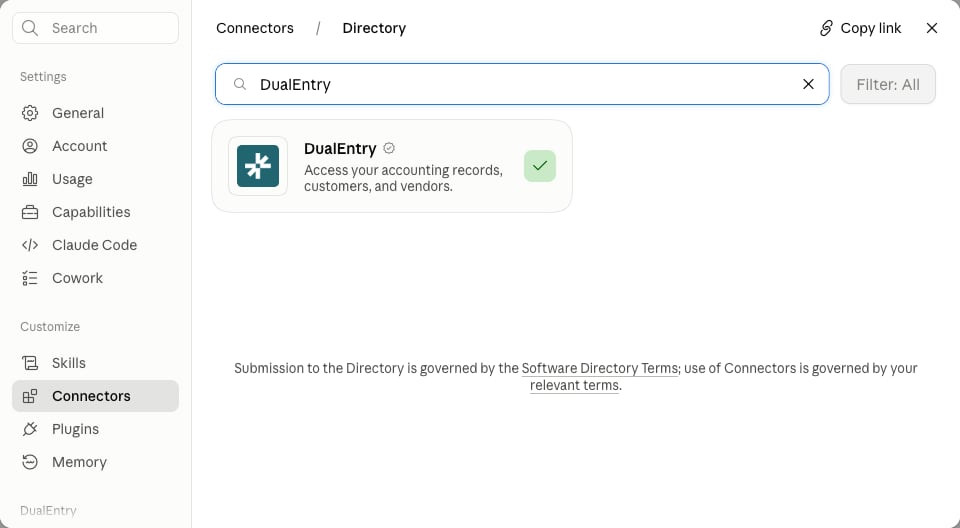
 3. Search the directory for **DualEntry** and select the verified listing, which carries the DualEntry logo and a verification badge. Custom connectors your organization added itself can appear alongside it in the results.
 4. Choose **Connect**. Claude opens a browser window for the DualEntry sign-in.
5. Sign in with your DualEntry credentials and approve the access request.
6. Return to **Customize > Connectors** and confirm DualEntry shows as **Connected**.
You can also reach the same place from inside a conversation: choose the **+** button, hover **Connectors**, and select **Manage connectors**.
Adding the connector for your organization and connecting your own account are separate actions on Team and Enterprise plans. An Owner adds it once, and every member still signs in individually. Nobody inherits a colleague's session, and nobody sees data their own DualEntry role does not already reach.
## Get the connector approved on a Team or Enterprise plan
On Team and Enterprise plans, an Owner or Primary Owner adds DualEntry for the whole organization, and members connect to it afterwards. The Admin role does not carry this permission, so admins and standard members both have to ask an Owner.
An Owner or Primary Owner completes the organization-level step:
1. Go to **Organization settings > Connectors**.
2. Choose **Browse connectors** at the bottom of the page.
3. Select **DualEntry** from the directory list and choose **Add to your team**.
Members who do not have permission to enable connectors see a **Request** button on the DualEntry listing in the directory. Choosing it sends the request to the organization's Owners, who see it under **Requested by your team** in **Organization settings > Connectors**.
Once the connector is added for the organization, every member repeats [Connect from the connector directory](#connect-from-the-connector-directory) for themselves to authenticate. Organization-level approval makes the connector available; it does not grant anyone access to your ledger on its own.
Enterprise Owners who want members provisioned through their identity provider instead can set up managed authorization on the connector's **Configuration** tab, which controls the roles and scopes members receive. Anthropic documents both paths in [Authorize MCP connectors for your entire organization](https://support.claude.com/en/articles/15537633-authorize-mcp-connectors-for-your-entire-organization) and in [Use connectors to extend Claude's capabilities](https://support.claude.com/en/articles/11176164-use-connectors-to-extend-claude-s-capabilities).
## Confirm the connection works
A connector listed as connected is not proof that the tools are reaching the conversation, so ask Claude for live data before you rely on it.
Ask a question that can only be answered from your ledger, for example:
> *"Show me all invoices from last month over \$5,000"*
A working connection returns real records from your organization. If Claude answers from general knowledge or says it has no access to DualEntry, open **Customize > Connectors** and check that DualEntry is connected rather than merely added.
You can also ask Claude directly what it can reach: "what DualEntry tools do you have?" returns the tool list it can see in that conversation. An empty answer points at the connection rather than at your permissions, because a connected account always exposes at least the read tools your role allows.
An access denied response means something different from a broken connection. It means the tool reached DualEntry and your role was refused, which is a permissions question for your DualEntry administrator rather than a setup problem. The [permissions table](../../../developers/guides/mcp-integration#permissions) lists which permission each tool checks.
## What Claude can do once connected
The connector exposes 15 tools covering record lookup, entity search, record creation, revenue recognition, fixed assets, and bank match suggestions. Every one of them runs under your own DualEntry role.
| Area | What Claude can do |
| ------------------- | ------------------------------------------------------------------------------------------------------------------------------------------------------------------ |
| Records | Search records with filters, open a record by ID or number such as `JE-123`, read its audit history, and list related records such as payments against an invoice. |
| Entities | Search vendors, customers, accounts, companies, items, classifications, terms, and ownership records, and create new ones. |
| Writing | Create an accounting record, for example a bill or a journal entry. |
| Revenue recognition | Read a contract with its schedule, preview the schedule a contract would produce, and create a contract. |
| Fixed assets | Preview a depreciation schedule and create a fixed asset. |
| Bank match | Retrieve suggested matches for bank statement lines. |
The [MCP integration reference](../../../developers/guides/mcp-integration) lists every tool by name with the permission it checks. For a worked example that ends in a posted journal entry, see [how to post a period-end accrual from Claude](./post-a-period-end-accrual-from-claude).
The tools that write are not previews. `save_record`, `save_entity`, `create_contract`, and `create_fixed_asset` commit as soon as Claude calls them, with no draft stage and no confirmation prompt. Ask Claude to show you the figures before you tell it to post, and use `preview_contract_schedule` or `preview_fixed_asset_schedule` when you want to see a schedule without creating anything.
## Connect a client other than Claude
The directory is a Claude feature. Cursor, VS Code, Codex, and other MCP clients connect to the same server by configuration, and they reach the same tools with the same permissions.
Use the per-client configuration blocks in [Quickstart: DualEntry MCP Server](../../../developers/guides/mcp-quickstart). Every client points at `https://api.dualentry.com/mcp/` over Streamable HTTP and signs in through the same OAuth browser flow, so the only difference is where the URL goes.
Claude Code is the exception among Claude clients. It reads the same server but is configured from the terminal with `claude mcp add --transport http dualentry https://api.dualentry.com/mcp/`, and it opens the browser sign-in the first time you use a DualEntry tool.
The manual path also applies to Claude itself when the directory is not an option, such as an Enterprise organization that blocks directory connectors but allows a custom one. In that case an Owner adds `https://api.dualentry.com/mcp/` as a custom connector, and members connect to it exactly as they would to the directory listing.
## Troubleshooting
Most failures at this stage are plan or approval problems rather than connection problems. The table below maps what you see to what to do about it.
| What you see | What to do |
| ----------------------------------------------------------------------------- | ------------------------------------------------------------------------------------------------------------------------------------------------------------------------------------------------------------------------------------------------------------------------------------------------------------ |
| DualEntry does not appear in the directory search | You are on a Team or Enterprise plan and an Owner has not added it yet. Use the **Request** button, or ask an Owner to complete the [organization step](#get-the-connector-approved-on-a-team-or-enterprise-plan). |
| The **Add** menu offers no way to browse the directory | Connectors require a Pro, Max, Team, or Enterprise plan. Free plans cannot add them from the directory or as custom connectors. |
| Sign-in window never opens | Your browser blocked the pop-up, or the Claude desktop app is out of date. Allow pop-ups for Claude and update the app, then retry **Connect**. |
| Connected, but Claude says it has no DualEntry access | The connector is added for the organization but you have not authenticated yourself. Open **Customize > Connectors** and choose **Connect** on the DualEntry entry. |
| A tool returns `Missing permission:` | Your DualEntry role lacks the permission named in the message. Ask your DualEntry administrator to update your [role](../../platform-configuration/user-roles-and-permissions). |
| Claude sees fewer companies or records than you expect | Company-level restrictions on your DualEntry user apply to MCP the same way they apply to the dashboard. |
| Worked yesterday, fails today | Your session expired or was revoked. Reconnect from **Customize > Connectors**. |
| Connected during a sandbox evaluation, but Claude has no access after go-live | Some go-lives provision a new DualEntry organization rather than promoting the sandbox in place, and a new organization needs its own connection. Check whether your organization name or ID changed, and if it did, reconnect from **Customize > Connectors** and sign in with your production credentials. |
| A revenue recognition or fixed asset tool returns a subscription error | The feature is not enabled for your organization. This is a subscription question rather than a permission one, so raise it with your account team. |
## Related reading
* [Quickstart: DualEntry MCP Server](../../../developers/guides/mcp-quickstart): manual configuration for Cursor, VS Code, Codex, and other clients.
* [MCP Server: Tools, Permissions, and Troubleshooting](../../../developers/guides/mcp-integration): every tool by name and the permission it checks.
* [Period-End Accruals: Post from Claude over MCP](./post-a-period-end-accrual-from-claude): a worked example that posts a journal entry.
* [User Roles and Permissions Reference](../../platform-configuration/user-roles-and-permissions): the roles that decide what Claude can reach.
* [How to Connect an MCP Connector](../connect-an-mcp-connector): the reverse direction, giving Accounting Intelligence access to outside systems.
4. Choose **Connect**. Claude opens a browser window for the DualEntry sign-in.
5. Sign in with your DualEntry credentials and approve the access request.
6. Return to **Customize > Connectors** and confirm DualEntry shows as **Connected**.
You can also reach the same place from inside a conversation: choose the **+** button, hover **Connectors**, and select **Manage connectors**.
Adding the connector for your organization and connecting your own account are separate actions on Team and Enterprise plans. An Owner adds it once, and every member still signs in individually. Nobody inherits a colleague's session, and nobody sees data their own DualEntry role does not already reach.
## Get the connector approved on a Team or Enterprise plan
On Team and Enterprise plans, an Owner or Primary Owner adds DualEntry for the whole organization, and members connect to it afterwards. The Admin role does not carry this permission, so admins and standard members both have to ask an Owner.
An Owner or Primary Owner completes the organization-level step:
1. Go to **Organization settings > Connectors**.
2. Choose **Browse connectors** at the bottom of the page.
3. Select **DualEntry** from the directory list and choose **Add to your team**.
Members who do not have permission to enable connectors see a **Request** button on the DualEntry listing in the directory. Choosing it sends the request to the organization's Owners, who see it under **Requested by your team** in **Organization settings > Connectors**.
Once the connector is added for the organization, every member repeats [Connect from the connector directory](#connect-from-the-connector-directory) for themselves to authenticate. Organization-level approval makes the connector available; it does not grant anyone access to your ledger on its own.
Enterprise Owners who want members provisioned through their identity provider instead can set up managed authorization on the connector's **Configuration** tab, which controls the roles and scopes members receive. Anthropic documents both paths in [Authorize MCP connectors for your entire organization](https://support.claude.com/en/articles/15537633-authorize-mcp-connectors-for-your-entire-organization) and in [Use connectors to extend Claude's capabilities](https://support.claude.com/en/articles/11176164-use-connectors-to-extend-claude-s-capabilities).
## Confirm the connection works
A connector listed as connected is not proof that the tools are reaching the conversation, so ask Claude for live data before you rely on it.
Ask a question that can only be answered from your ledger, for example:
> *"Show me all invoices from last month over \$5,000"*
A working connection returns real records from your organization. If Claude answers from general knowledge or says it has no access to DualEntry, open **Customize > Connectors** and check that DualEntry is connected rather than merely added.
You can also ask Claude directly what it can reach: "what DualEntry tools do you have?" returns the tool list it can see in that conversation. An empty answer points at the connection rather than at your permissions, because a connected account always exposes at least the read tools your role allows.
An access denied response means something different from a broken connection. It means the tool reached DualEntry and your role was refused, which is a permissions question for your DualEntry administrator rather than a setup problem. The [permissions table](../../../developers/guides/mcp-integration#permissions) lists which permission each tool checks.
## What Claude can do once connected
The connector exposes 15 tools covering record lookup, entity search, record creation, revenue recognition, fixed assets, and bank match suggestions. Every one of them runs under your own DualEntry role.
| Area | What Claude can do |
| ------------------- | ------------------------------------------------------------------------------------------------------------------------------------------------------------------ |
| Records | Search records with filters, open a record by ID or number such as `JE-123`, read its audit history, and list related records such as payments against an invoice. |
| Entities | Search vendors, customers, accounts, companies, items, classifications, terms, and ownership records, and create new ones. |
| Writing | Create an accounting record, for example a bill or a journal entry. |
| Revenue recognition | Read a contract with its schedule, preview the schedule a contract would produce, and create a contract. |
| Fixed assets | Preview a depreciation schedule and create a fixed asset. |
| Bank match | Retrieve suggested matches for bank statement lines. |
The [MCP integration reference](../../../developers/guides/mcp-integration) lists every tool by name with the permission it checks. For a worked example that ends in a posted journal entry, see [how to post a period-end accrual from Claude](./post-a-period-end-accrual-from-claude).
The tools that write are not previews. `save_record`, `save_entity`, `create_contract`, and `create_fixed_asset` commit as soon as Claude calls them, with no draft stage and no confirmation prompt. Ask Claude to show you the figures before you tell it to post, and use `preview_contract_schedule` or `preview_fixed_asset_schedule` when you want to see a schedule without creating anything.
## Connect a client other than Claude
The directory is a Claude feature. Cursor, VS Code, Codex, and other MCP clients connect to the same server by configuration, and they reach the same tools with the same permissions.
Use the per-client configuration blocks in [Quickstart: DualEntry MCP Server](../../../developers/guides/mcp-quickstart). Every client points at `https://api.dualentry.com/mcp/` over Streamable HTTP and signs in through the same OAuth browser flow, so the only difference is where the URL goes.
Claude Code is the exception among Claude clients. It reads the same server but is configured from the terminal with `claude mcp add --transport http dualentry https://api.dualentry.com/mcp/`, and it opens the browser sign-in the first time you use a DualEntry tool.
The manual path also applies to Claude itself when the directory is not an option, such as an Enterprise organization that blocks directory connectors but allows a custom one. In that case an Owner adds `https://api.dualentry.com/mcp/` as a custom connector, and members connect to it exactly as they would to the directory listing.
## Troubleshooting
Most failures at this stage are plan or approval problems rather than connection problems. The table below maps what you see to what to do about it.
| What you see | What to do |
| ----------------------------------------------------------------------------- | ------------------------------------------------------------------------------------------------------------------------------------------------------------------------------------------------------------------------------------------------------------------------------------------------------------ |
| DualEntry does not appear in the directory search | You are on a Team or Enterprise plan and an Owner has not added it yet. Use the **Request** button, or ask an Owner to complete the [organization step](#get-the-connector-approved-on-a-team-or-enterprise-plan). |
| The **Add** menu offers no way to browse the directory | Connectors require a Pro, Max, Team, or Enterprise plan. Free plans cannot add them from the directory or as custom connectors. |
| Sign-in window never opens | Your browser blocked the pop-up, or the Claude desktop app is out of date. Allow pop-ups for Claude and update the app, then retry **Connect**. |
| Connected, but Claude says it has no DualEntry access | The connector is added for the organization but you have not authenticated yourself. Open **Customize > Connectors** and choose **Connect** on the DualEntry entry. |
| A tool returns `Missing permission:` | Your DualEntry role lacks the permission named in the message. Ask your DualEntry administrator to update your [role](../../platform-configuration/user-roles-and-permissions). |
| Claude sees fewer companies or records than you expect | Company-level restrictions on your DualEntry user apply to MCP the same way they apply to the dashboard. |
| Worked yesterday, fails today | Your session expired or was revoked. Reconnect from **Customize > Connectors**. |
| Connected during a sandbox evaluation, but Claude has no access after go-live | Some go-lives provision a new DualEntry organization rather than promoting the sandbox in place, and a new organization needs its own connection. Check whether your organization name or ID changed, and if it did, reconnect from **Customize > Connectors** and sign in with your production credentials. |
| A revenue recognition or fixed asset tool returns a subscription error | The feature is not enabled for your organization. This is a subscription question rather than a permission one, so raise it with your account team. |
## Related reading
* [Quickstart: DualEntry MCP Server](../../../developers/guides/mcp-quickstart): manual configuration for Cursor, VS Code, Codex, and other clients.
* [MCP Server: Tools, Permissions, and Troubleshooting](../../../developers/guides/mcp-integration): every tool by name and the permission it checks.
* [Period-End Accruals: Post from Claude over MCP](./post-a-period-end-accrual-from-claude): a worked example that posts a journal entry.
* [User Roles and Permissions Reference](../../platform-configuration/user-roles-and-permissions): the roles that decide what Claude can reach.
* [How to Connect an MCP Connector](../connect-an-mcp-connector): the reverse direction, giving Accounting Intelligence access to outside systems.