

Before you start
Two accounts have to be in place before the connection works: a Claude plan that allows connectors, and a DualEntry login with the access you expect Claude to have. Connectors require a Claude Pro, Max, Team, or Enterprise plan. Free plans cannot add them from the directory or anywhere else. You also need your normal DualEntry credentials. There is no API key to create and nothing to request from DualEntry: you sign in through the same browser flow you use for the dashboard. Your MCP access mirrors your DualEntry role, company access, and subscriptions. If you cannot see a record type in the dashboard, Claude cannot see it either, and a tool that needs a permission you do not hold returns aMissing permission: message rather than the data.
On a Claude Team or Enterprise plan, an Owner or Primary Owner has to add DualEntry for the organization before it appears for members, and each member then authenticates individually. Start with Get the connector approved on a Team or Enterprise plan if that is your situation, because the directory search returns nothing useful until that step is done. Anthropic documents the organization side in Authorize MCP connectors for your entire organization.
Connect from the connector directory
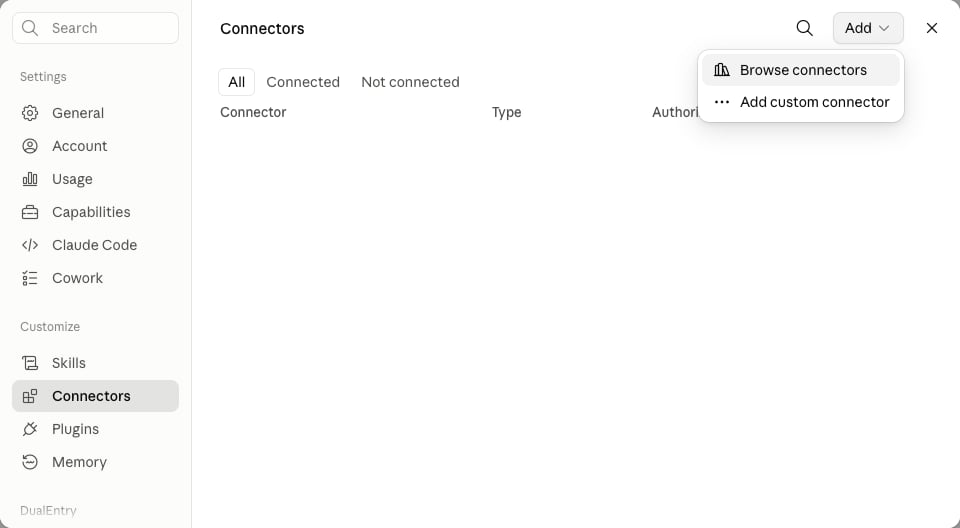
Adding DualEntry from the directory takes about a minute and ends with a browser sign-in. These steps are the same on Claude for web, desktop, and mobile.- Open Claude and go to Customize > Connectors. The older Settings > Connectors entry point redirects here.
-
Choose Add, then Browse connectors.
-
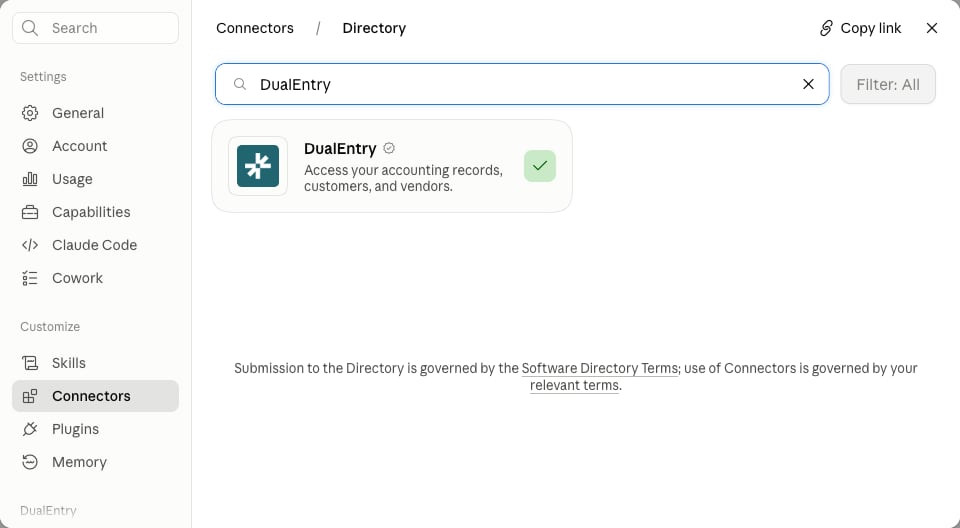
Search the directory for DualEntry and choose the verified listing, which carries the DualEntry logo and a verification badge. Custom connectors your organization added itself can appear alongside it in the results.
- Choose Connect. Claude opens a browser window for the DualEntry sign-in.
- Sign in with your DualEntry credentials and approve the access request.
- Return to Customize > Connectors and confirm DualEntry shows as Connected.
Get the connector approved on a Team or Enterprise plan
On Team and Enterprise plans, an Owner or Primary Owner adds DualEntry for the whole organization, and members connect to it afterwards. The Admin role does not carry this permission, so admins and standard members both have to ask an Owner. An Owner or Primary Owner completes the organization-level step:- Go to Organization settings > Connectors.
- Choose Browse connectors at the bottom of the page.
- Choose DualEntry from the directory list, then choose Add to your team.
Confirm the connection works
A connector listed as connected is not proof that the tools are reaching the conversation, so ask Claude for live data before you rely on it. Ask a question that can only be answered from your ledger, for example:“Show me all invoices from last month over $5,000”A working connection returns real records from your organization. If Claude answers from general knowledge or says it has no access to DualEntry, open Customize > Connectors and check that DualEntry is connected rather than merely added. You can also ask Claude directly what it can reach: “what DualEntry tools do you have?” returns the tool list it can see in that conversation. An empty answer points at the connection rather than at your permissions, because a connected account always exposes at least the read tools your role allows. An access denied response means something different from a broken connection. It means the tool reached DualEntry and your role was refused, which is a permissions question for your DualEntry administrator rather than a setup problem. The permissions table lists which permission each tool checks.
What Claude can do once connected
The connector exposes 15 tools covering record lookup, entity search, record creation, revenue recognition, fixed assets, and bank match suggestions. Every one of them runs under your own DualEntry role.
The MCP integration reference lists every tool by name with the permission it checks. For a worked example that ends in a posted journal entry, see how to post a period-end accrual from Claude.
Connect a client other than Claude
The directory is a Claude feature. Cursor, VS Code, Codex, and other MCP clients connect to the same server by configuration, and they reach the same tools with the same permissions. Use the per-client configuration blocks in Connect MCP Clients. Every client points athttps://api.dualentry.com/mcp/ over Streamable HTTP and signs in through the same OAuth browser flow, so the only difference is where the URL goes.
Claude Code is the exception among Claude clients. It reads the same server but is configured from the terminal with claude mcp add --transport http dualentry https://api.dualentry.com/mcp/, and it opens the browser sign-in the first time you use a DualEntry tool.
The manual path also applies to Claude itself when the directory is not an option, such as an Enterprise organization that blocks directory connectors but allows a custom one. In that case an Owner adds https://api.dualentry.com/mcp/ as a custom connector, and members connect to it exactly as they would to the directory listing.
Troubleshooting
Most failures at this stage are plan or approval problems rather than connection problems. The table below maps what you see to what to do about it.Related reading
- Connect MCP Clients: one-click setup for Cursor, plus configuration for VS Code, Codex, and other clients.
- MCP Server: Tools, Permissions, and Troubleshooting: every tool by name and the permission it checks.
- How to Post a Period-End Accrual from Claude: a worked example that posts a journal entry.
- User Roles and Permissions Reference: the roles that decide what Claude can reach.
- How to Connect an MCP Connector: the reverse direction, giving Accounting Intelligence access to outside systems.